Understanding the Print Spooler
The Spooler is a special process that manages access to printers by multiple users. For most users, the function of the Spooler is transparent. They generate a job for a printer and go to the printer to pick up the output. The Spooler permits users to continue working without waiting for a print job to finish printing.
This section introduces how the Spooler works and the commands used to modify its operation. The main focus is on the Spooler-related tasks that can be performed from user accounts, such as changing the default printer assignment, cancelling a job, and capturing output in Spooler hold files.
The Spooler has two roles:
It spools print jobs by directing the output from a user's process to a print file. It creates an entry in the print queue for the job.
It despools print jobs by emptying the print queue, one job at a time per printer, as the assigned printer becomes available.
Operational Spooler parameters include the following:
Up to 600 print files can be maintained on the queue.
60 files can be generated simultaneously per user process.
Up to 1500 form queues can be assigned across the system.
125 copies can be generated by a single print request.
Up to 1000 printers are supported.
The Spooler and Processes
The print Spooler is a special process that manages access to printers by multiple users. The Spooler is used by the operating system to control all tape drives, diskette drives, and printers that are connected to the system. The Spooler puts reports that are to be printed into a form queue, where they wait to be printed on specified printers. The Spooler also handles requests for multiple copies of a file, use of special forms, and device-specific formatting.
The Spooler runs as a separate phantom process, a process that is not linked or attached to any line. The Spooler is always the last process on the system. For example, if 12 user processes have been configured, the Spooler will run on the 13th process, which is process 12 (the first process on the system is process 0).
The Spooler process starts automatically whenever the system is coldstarted and whenever the :FILELOAD command is used to restore the data area of the disk.
The :STARTSPOOLER command can be used to start the Spooler without having to reboot the system. When the Spooler is started, a Process Control Block (PCB) and workspace are allocated to it in the same manner in which user processes are allocated.
Basic Operation of the Spooler
Any job that is sent to the printer is managed by the Spooler. For example, the following INFO/ACCESS command uses the keyword LPTR to direct the output to the printer.
>LIST CUSTOMERS LAST-NAME FIRST-NAME LPTR |
Most commands also accept the parenthetical (P option to send the output of a command to the printer.
A print job is actually a request for the Spooler to handle the output from the process. The Spooler collects the output intended for the printer and places it in a temporary print file. The Spooler maintains a queue to handle all requests on a first-come, first- served basis. Each entry in the print queue identifies the print file and its destination.
For each entry in the queue the Spooler determines if the assigned printer is available to handle the job. If the printer is available, the job is printed immediately. If the printer is unavailable, this means that either the printer is currently printing a job or the printer is off- line. In both cases, the Spooler holds the print job in the queue until the printer is ready to take the job.Each printer connected to the system is assigned a number, starting with printer number 0, which is the default system printer. The administrator assigns each printer a number when it is added to the system. The administrator can also assign up to three form queues to a printer, allowing different paper sizes and formats to be used with the same printer. The same form queue can be assigned to several different printers, so that if a printer is currently printing a job, a second job sent to the same form queue can be printed on another printer that's available. The default is form
queue 0.
A form queue might be considered a logical printer. A form queue represents any printer or printers set up to handle the same computer paper or preprinted form. Multiple printers can be assigned to service the same form queue.
The diagram that follows illustrates how several printers might be assigned to service different form queues. In this illustration, form queue 1 is directed to two line printers using 130-column computer paper. A job sent to form queue 1 will print on either Printer 1 or Printer 2. When Printer 3 is loaded with preprinted labels, it services form queue 2; when it is loaded to print envelopes, Printer 3 must be configured to service form queue 3.
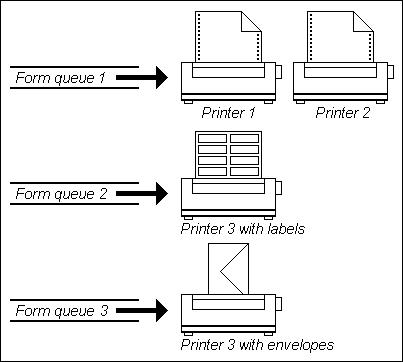
In this example, the administrator decides at startup which form queue Printer 3 will service. To change the form queue, the administrator must remove the printer from the system and restart it. Note that jobs can be directed to form queue 2 or 3, regardless of which form queue is assigned to Printer 3. If Printer 3 is servicing form queue 2, jobs sent to form queue 3 will be accepted and held in the print queue. When Printer 3 is restarted to service form queue 3, the spooled jobs will be output.
Each account has a single form queue assigned to it, as illustrated in the next diagram. The default is form queue 0, which is usually directed to the default system printer. Users can change the form queue assignment for their account, using the SP-ASSIGN command.
NOTE | It is important to remember that users do not choose a system printer directly; they choose a form queue serviced by that printer. |
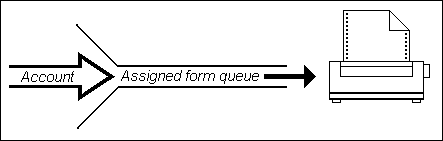
For example, consider a system with only one printer. The administrator sets up this printer as the default printer 0 which services form queue 0. The default form queue assignment handles all jobs on 130- column computer paper. However, the same printer can also be set up to handle special preprinted invoices. These special jobs are directed to form queue 1 by changing the form queue assignment in the account.
When the print job is submitted, the Spooler checks to see if any printer is servicing that form queue. A job sent to form queue 0 from any account is handled immediately if the printer is not currently printing another job. A job sent to form queue 1 is held until the printer is restarted to service that form queue. Perhaps invoices are held and printed at the end of the day.
The Spooler allows users to share a single printer or multiple printers, as well as to use a single printer to print on different types of paper or forms.
Print Files and Hold Files
Each print job generates a print file. The job's entry in the print queue points to the location of the print file, which is retrieved when the printer is ready to accept the job. Once the job is finished printing, the print queue entry is removed and the frames used by the print file are released. Print files are held in the print queue if the assigned printer is not available.
Output from an account can also be maintained as a hold file. A hold file is a print file with a hold status. It remains on the print queue, regardless of whether the job is printed or not. Hold files must be explicitly deleted from the queue when they are no longer needed. (A full file-restore clears the print queue.) The SP-ASSIGN command is used to specify that spooled output is to be retained as a hold file. The SP-EDIT command is used to manipulate hold files on the queue. It allows the user to examine any hold file on the screen, print the file, or direct it to tape drive or floppy disk drive. The SP-EDIT file is also used to delete hold files or direct them to a form queue different from the one originally specified.
Only a job that is currently printing can be cancelled by the SP-KILL command. Print files that are in the queue but are not printing must be converted into hold files using the SP-ASSIGN command; only then can they be manipulated. The user cannot view or delete a print file unless it has a hold status. You must make it a hold file and then use SP-EDIT to perform those tasks.
The DEVICES file contains an item for every terminal or printer device recognized by the mvBase System. The actual escape sequences produced by @ functions in BASIC and PROC are defined within these device drivers.
The item-IDs are device codes (for example, HP-LZRII is the HP-LZRIII terminal).
The attributes in the DEVICES file for printers are:
Attribute | Name | Description |
0 |
| Full name and model number information for device. |
1 | desc | Description of device. |
2 | points | ASCII character for backspacing, number of columns, number of rows. |
3 | lpi | Device x-y cursor addressing statement, If applicable, will begins with ’=m’ otherwise the statement will contain a ’!’ (comment). |
4 | lpp | Cursor Addressing Code, if applicable, otherwise the statement will contain a ’!’ (comment). |
5 | orient | CRT Functions statement will begin with ’=s’,if applicable, otherwise the statement will contain a ’!’(comment). |
CRT Control Language (CCL)
D3 has a universal device function, the @() to specify certain printer commands.
To perform a certain feature the programmer will use the equivalent @() function. At runtime, the system will look up the function and substitute the proper character string then output it to the device. In this way, the compiled BASIC program does not have to contain hardware specific commands.
This method of device independence is achieved by creating many look-up tables - one for each device. Each look-up table contains over 300 different popular device functions, features and modes. Each function, referred to as an @() function has a corresponding character string which is output to the device. Such a look-up table is considered to be a "script" written in mvBase’s CRT Control Language or CCL.
Example Use of the @() function
The system inserts the default printer device from the DEVICES file into the user’s Printer Control Block (PCB).
When the users enters an ASSIGNFQ command which specifies a device in the DEVICES file, the system retrieves the device from the dictionary of DEVICES and overwrites the users PCB effectively changing the printer types.
Now when the user runs a BASIC program and prints to that device with an @ function, the system goes to the ’new’ PCB and finds the proper @ function and outputs a different data string.
A CCL script contains of several sections, each section contains sentences, each sentence contains data elements.
The specific information for creating a CCL script is contained in the CONTROL.LANGUAGE item in the DEVICES file. The information can be displayed by using:
COPY DEVICES CONTROL.LANGUAGE (T) |
How to Stop and Restart the Print Spooler Service in Windows
The Print Spooler is software built into the Windows operating system that temporarily stores print jobs in the computer's memory until the printer is ready to print them.
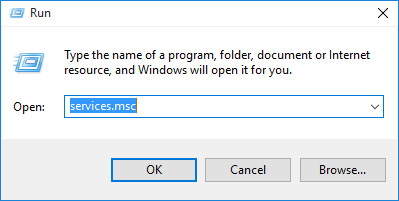
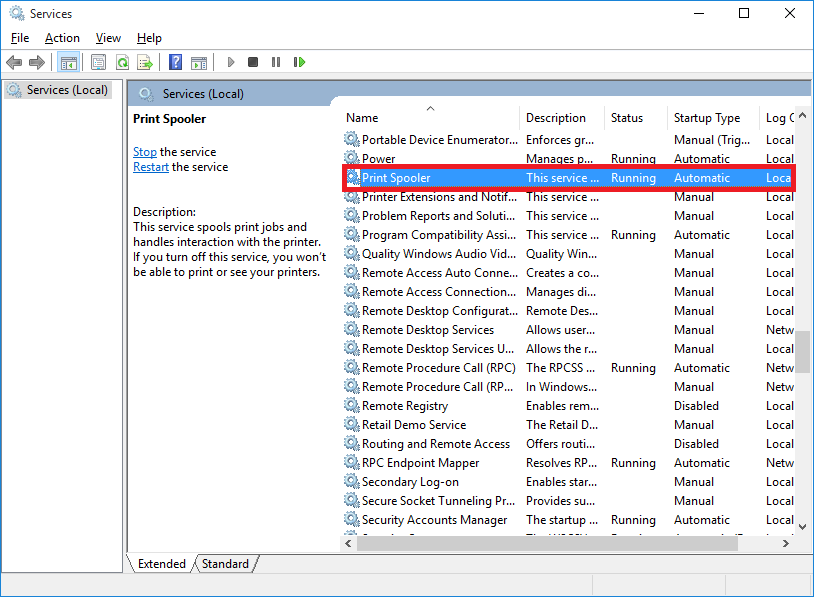
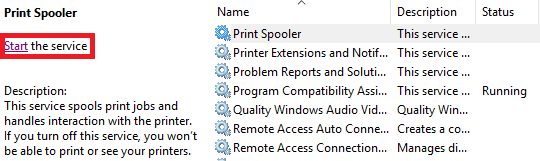
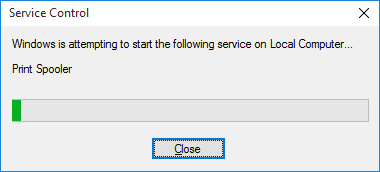
In some circumstances you may need to stop and/or restart the service. To access the Print Spooler you must open the Local Services console.
How to Stop the Print Spooler service
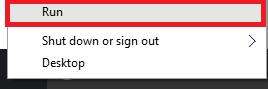
At the bottom left of the screen and right click or tap and hold the  Start button and left click on Run from the menu that appears.






Comments
Post a Comment